Mouse Manager is an optional but powerful software for extensively customizing button and wheel functions. Its enables:
• Changing button functions.
• Assigning any keyboard key combination or shortcut to the buttons.
• Assigning up to 9 functions to the buttons.
• Configuring different programs or applications with different sets of button functions.
• Significantly reducing the need to move your hand away from the mouse to press the keyboard.
• Significantly reducing mouse movements needed to click buttons on screen.
Install instructions:
1. Connect the VerticalMouse to a USB port and wait for Windows to set it up for basic functionality. For Bluetooth equipped versions of VerticalMouse, turn on the power switch and go to System Settings, Bluetooth, and Add device.
2. Press the pointer speed button on the VerticalMouse to set the hardware pointer speed to 1 or 2 lights. Slower is more precise.
3. Go to Control Panel, Mouse to uncheck or disable the box for Enhance Pointer Precision and set the pointer speed slider to the middle. Fine tune the slider to get the desired pointer response. Slower is more precise.
4. Remove any existing Evoluent driver and other mouse drivers, except for touchpad driver. In Windows, go to Settings, Apps, Installed Apps, to look up installed mouse software.
5. Click one of the links below to download and install Mouse Manager. After install is finished, restart the computer. Click the E icon on the taskbar to open Mouse Manager to configure the buttons and wheel.
v6.0.9.3 for Windows 7, 8, 10 and 11
v6.0.3.0 for Windows 7, 8, 10 and 11
Sometimes after a Windows update, the button functions in Mouse Manager may be changed to “Disabled”, or programmed button functions have no effect. This is due to incompatibility with some 2025 Windows updates on some computers.
Go to Control Panel, Programs and Features to uninstall Evoluent Mouse Manager. Download and install Mouse Manager again.
If the issue persists after reinstall:
• Uninstall Mouse Manager again. Restart the computer.
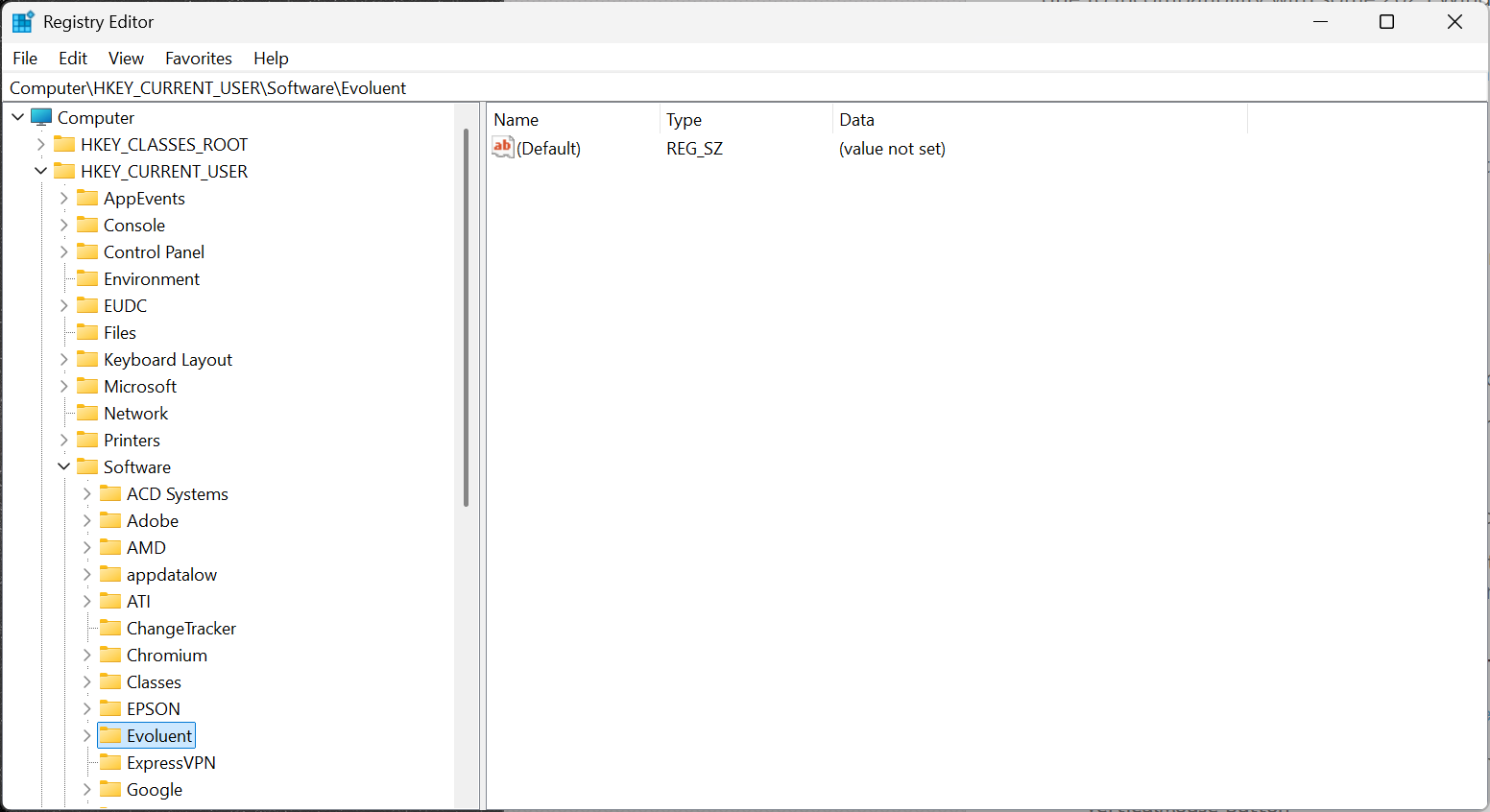
• Open regedit from the Windows search box.
NOTE: exercise caution when using regedit, as improper use may corrupt your Windows configuration.
• Find this key:
Computer\HKEY_CURRENT_USER\Software\Evoluent
• Right click on the Evoluent key or folder in the left pane and click Delete.
• Close regedit.
• Reinstall Mouse Manager. Restart the computer.
If the above procedure does not restore button functions, please uninstall Mouse Manager and try the following third-party universal mouse software:
https://www.highrez.co.uk/downloads/xmousebuttoncontrol.htm
Evoluent is not affiliated with the vendor in any way. We are not endorsing them but are only providing this info as a convenience to our users.
Note: in X-Mouse, keystroke recording is termed “Simulated keys”.
Mouse Manager v.6.0.9.3 is not compatible with Windows for ARM. See below on the software update project.
A project was started in May 2025 to update Mouse Manager to fix bugs, improve compatibility, add features, and add ARM support. Difficulties encountered during the project are causing significant delays. In Dec 2025 the first test version was completed and is currently undergoing testing.
Evoluent no longer supplies Mouse Manager for Mac OS. Although we previously provided Mac software, Apple required our software to be recertified every time there was an OS update. We had great difficulty in meeting this requirement. During the last update we attempted, Apple did not respond to our repeated requests for the required files. We had to give up.
Please consider trying the following third-party software for customizing mouse functions.
https://github.com/noah-nuebling/mac-mouse-fix/releases/tag/2.2.0
Please note that Evoluent is not affiliated with these vendors in any way. We are not endorsing them, but are providing this info only as a convenience to our users.
Essentials Keyboard pdf brochure
VerticalMouse 4 Right Wireless A4 size , letter size
VerticalMouse 4 pdf brochure
VerticalMouse 3 pdf brochure
Mouse-Friendly Keyboard letter size